Temu Auto-Claim: Pause It to Protect a Bigger Reward
Auto-claim files your Temu price-adjustment refunds the moment they qualify — exactly what you want, almost always. But sometimes claiming right away costs you a bigger reward. Now you can pause auto-claim, on every order or just one, while RefundRadar keeps scanning in the background.
What's new
RefundRadar watches your Temu orders and, the moment an item qualifies for a price-adjustment refund, files the claim for you automatically. That is exactly what you want almost all of the time — money back with zero effort.
But not always. Sometimes an instant refund is the wrong move, because claiming it can cancel out a larger reward you were about to earn — a WinCredit bonus, a ClaimCredit balance, or a stacked cashback promotion. So we built a control that puts you back in charge: you can now pause auto-claim. Turn it off for your whole account, or hold just one order, and RefundRadar keeps scanning and tracking your savings in the background — it simply files no claim until you say so.
Why we built it: when an instant refund costs you more
A Temu price adjustment refunds the difference when an item you bought gets cheaper. It is real money — but it is usually a small amount, and it is paid back as Temu credit. The problem is that on some orders, a larger reward is riding on the original amount you paid.
Promotions like WinCredit and ClaimCredit can reward you based on your qualifying spend, and can be reduced or reversed if the order value drops before the reward settles. In those cases a small automatic price-adjustment claim today can cost you a bigger reward tomorrow. We wrote about this trade-off in detail in Temu Price Adjustment vs WinCredit & ClaimCredit — pausing is the control that lets you follow that guide’s golden rule: wait until the reward settles, then resume.
How Pause works
Pausing does not stop RefundRadar from working. When auto-claim is off, we still scan every order, still detect price drops, and still track how much you’ve saved — we just hold the claim instead of filing it. Each held order shows the amount that is ready and waiting, so nothing is hidden and nothing is lost while you decide.
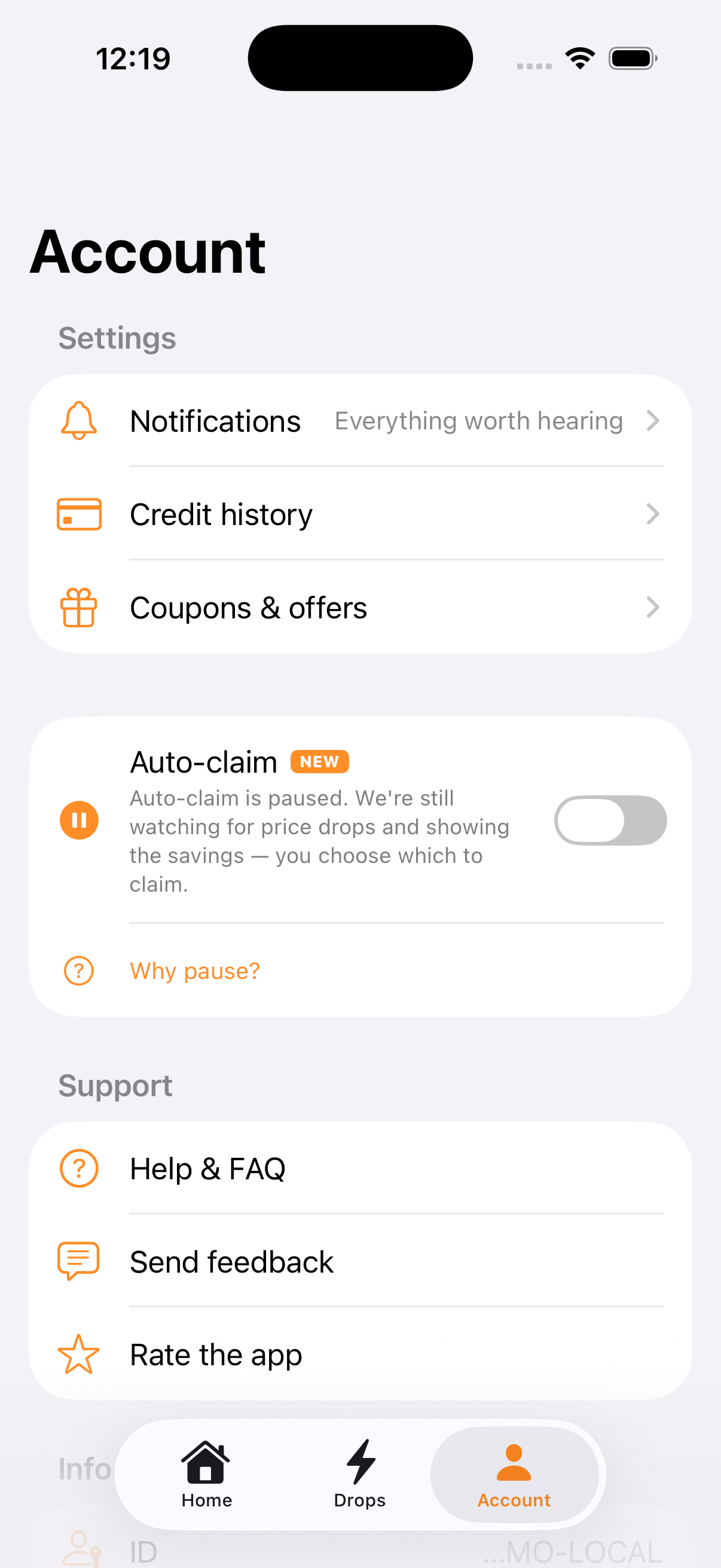
Nothing about the paused state is hidden. The Auto-claim switch shows the status right in its subtitle — “Auto-claim is paused. We’re still watching for price drops and showing the savings — you choose which to claim.” — and every held order stays visible in the By order list with the exact amount that’s ready and waiting.
Pausing just one order
You don’t have to choose all-or-nothing. In the By order list, every eligible order has its own switch, so you can hold a single order that has a reward attached while everything else keeps auto-claiming. Orders that are already claimed, or fully cancelled, don’t show a switch — there’s nothing left to hold.
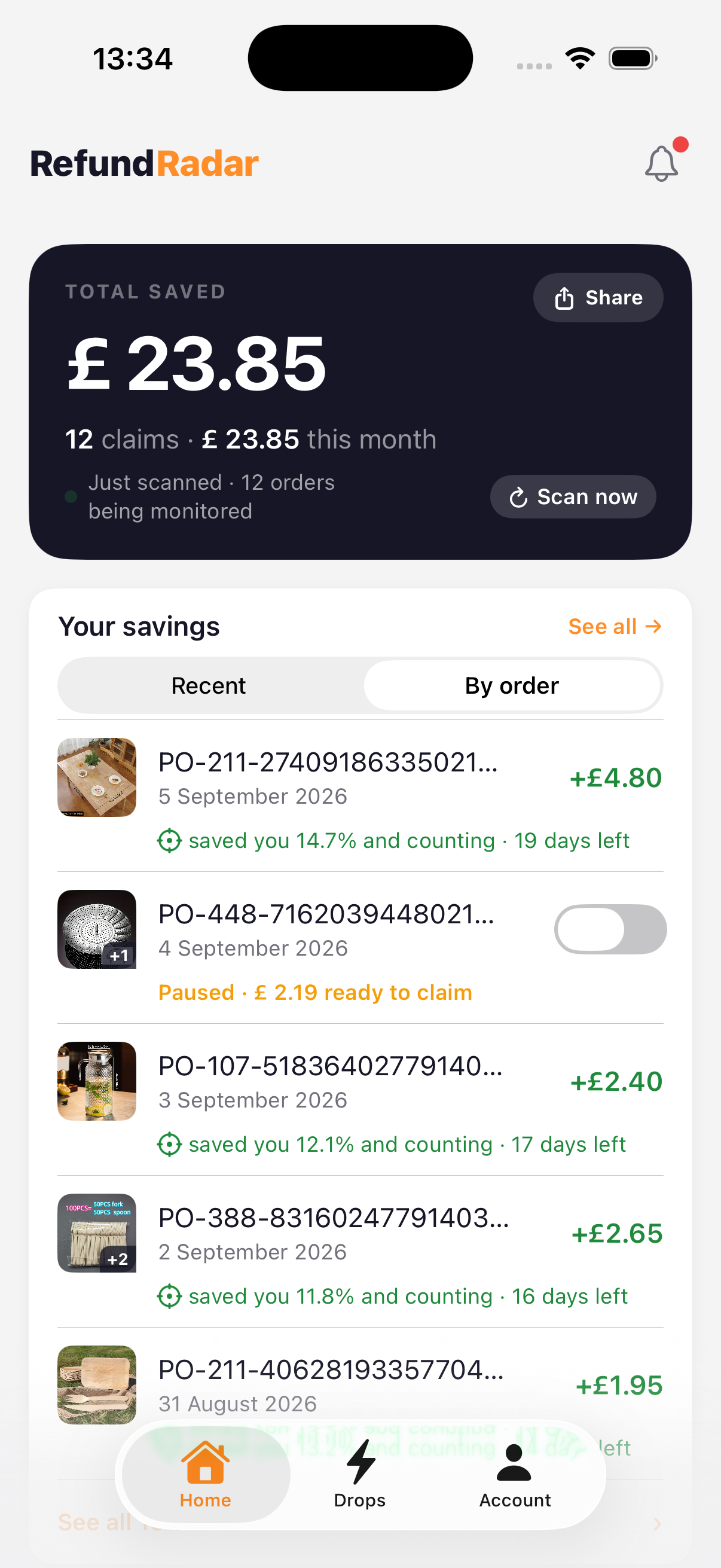
When you resume an order that already has a price drop waiting, RefundRadar asks you to confirm first — because filing the claim is immediate and can’t be undone. Resume an order with nothing waiting and it simply rejoins the normal lane, ready to auto-claim the next drop.
When you should pause
For most people, most of the time, the answer is: don’t. Auto-claim on is the right default — it catches short-lived price drops you would otherwise miss. Reach for pause only when an order has a bigger reward at stake than the refund itself:
-
You’re earning a WinCredit or ClaimCredit reward on the orderIf a promotion pays out based on what you spent, hold the claim until that reward has landed and settled. See the WinCredit guide for the exact timing.
-
A stacked cashback or referral promo is still pendingIf a third-party cashback or referral bonus depends on the order value, pausing avoids shrinking the order before the bonus confirms.
-
You might want a Price Match instead (some markets, e.g. Canada)In markets where Temu offers a competitor Price Match — confirmed on Temu Canada — the two policies are mutually exclusive per item: once a Price Adjustment is filed, that item is no longer eligible for Price Match, and vice versa. If you think a competitor’s lower price could beat Temu’s own drop, pause that order so auto-claim doesn’t quietly foreclose the Price Match option.
-
You simply want to review a claim before it’s filedPrefer to eyeball each refund yourself? Pause, then resume the ones you’re happy with. The held amount is always shown, so you never lose track.
How to turn it on
-
1Open the Account tabUpdate to the latest version of RefundRadar, then open the app and tap Account.
-
2Find the Auto-claim switchOn the Account tab, find the Auto-claim switch marked NEW, just below your other settings. On (green) means claims are filed automatically; turn it off to pause.
-
3Turn it off to pause — or hold a single orderSwitch Auto-claim off to hold every order, or leave it on and pause just one from the By order list. RefundRadar keeps scanning either way. Resume anytime.
Download the free app →
Frequently asked questions
Does pausing auto-claim stop RefundRadar from scanning my orders?
No. When auto-claim is paused, RefundRadar still scans every order, still detects price drops, and still tracks your savings. The only difference is that it holds the claim instead of filing it. Each held order shows the amount that is ready to claim, so nothing is lost while you wait.
Will I lose a price drop if I pause?
The amount that’s ready is held, not lost — it stays visible on the order and on the Home card. Resume the order and the claim is filed. The one thing to know: a price adjustment is only worth what the live price difference is at the moment it’s filed, and Temu prices move. If you’re holding purely to protect a reward, resume as soon as that reward settles.
Can I pause just one order instead of all of them?
Yes. Leave the master Auto-claim switch on and use the per-order switch in the By order list to hold a single order. Everything else keeps auto-claiming as normal. Already-claimed and fully-cancelled orders don’t show a switch, because there’s nothing left to hold.
Why would I ever want to pause an automatic refund?
Because on some orders a larger reward rides on the amount you paid — a WinCredit or ClaimCredit bonus, or a stacked cashback promo — and those can be reduced if the order value drops before the reward settles. A filed price adjustment can’t be undone, so holding the claim is the only way to protect the bigger reward. Our WinCredit vs price adjustment guide explains exactly when this happens.
Is pause available on both iPhone and Android?
Yes — the Auto-claim control is available in the latest RefundRadar app on both iOS and Android. Make sure you’re on the newest version so the switch appears in your Account tab.