Where Is the Price Adjustment Button on Temu?
The Price Adjustment button is there — it just takes a few taps to reach, and it only offers a claim when an item is currently cheaper than you paid. This guide shows exactly where to find it, on both the app and the website, and covers every reason it might show nothing to claim.
Exactly where the button is
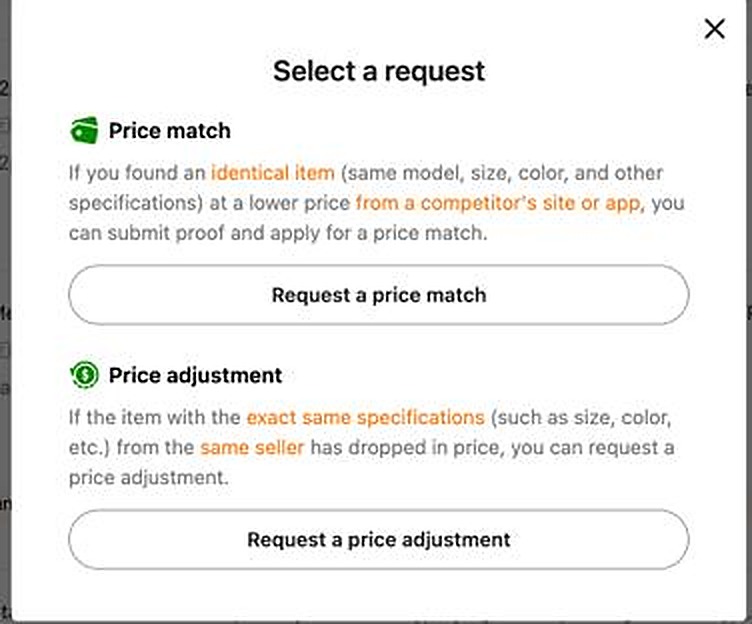
The Price Adjustment option lives on the order detail page — not on the main Orders list, and not in your account settings, so you need to open a specific order. Depending on your region and app version, you will either see a Price Adjustment option on the item itself, or a single “Price match/adjustment” button on the order that opens a “Select a request” menu (shown below).
The button label can vary slightly depending on your region and which app version you have. You may see it labelled "Price Adjustment", "Request Price Adjustment", or something similar. In some regions, tapping the item first brings up a "Select a request" modal — if so, choose the "Price adjustment" option from the list.
Step-by-step: how to reach it on the app
The path is four taps from the home screen. It's the same on iOS and Android.
-
1Tap the profile iconThe profile icon is in the bottom-right corner of the app. Tap it to open your account area.
-
2Tap "My Orders"You'll see your order history. The list shows all your recent orders. Find an order placed within the last 30 days that contains the item you want to check.
-
3Tap the order to open the detail pageThis opens the full order detail view, showing shipping status, item list, and order summary. Do not stop at the order list — you need to go one level deeper.
-
4Scroll down to the item and look for the buttonScroll past the shipping and order summary sections to find the individual items in your order. Below each eligible item, you will see the Price Adjustment button (or a button labelled something like "Request Price Adjustment"). Tap it, review the refund amount, and confirm. The credit goes into your Temu account, usually within a few minutes.
Finding it on the Temu website (desktop)
The path on the Temu website follows exactly the same logic. Log in, click your account avatar in the top-right corner, then select "My Orders" from the dropdown. Click the order you want to check to open the order detail page. Scroll down past the order header and shipping section until you see the list of individual items. The Price Adjustment option sits with the item — or behind a “Price match/adjustment” button on the order — just like in the app.
If you see a "Select a request" button (common in some regions), click it and choose "Price Adjustment" from the list that appears. The wording is consistent with the app flow.
For more detail on the full process — including what happens after you tap — see our guide on how to request a price adjustment on Temu.
Why the button isn't showing
If you can’t find it — or you’ve opened it and Temu says nothing’s eligible — one of these is usually why. They are listed in order of how often they occur:
-
The price is not currently lower than what you paidThis is by far the most common reason. Temu prices are volatile — they can drop and recover within hours. When you open the price-adjustment option, Temu checks the live price; if it is not currently below what you paid, it tells you there is nothing to claim right now. If it was lower yesterday but has since gone back up, wait — it can become claimable again if the price drops later in your window.
-
The 30-day window has expiredCheck the date on the order. If more than 30 days have passed since you placed it, the window is closed and no claim is possible — even if the price has dropped significantly. The 30-day clock starts from order date, not delivery date. See our full Temu price adjustment policy guide for more on eligibility windows.
-
You're looking at the order header, not the item levelThis trips up a lot of people. The option is never at the very top of the order page — it is further down, either on the item itself or behind the order’s “Price match/adjustment” button. Scroll past the order summary, tracking, and any shipping cards to find it.
-
The item was purchased during a flash deal or time-limited promotionFlash deals, limited-time offers, and certain promotional events are excluded from the price adjustment policy. If the item was originally a flash-deal price, the option will not offer a claim. Standard catalogue items bought at their regular price are eligible.
-
The item has already been returned or fully refundedIf you have already received a full refund on the item — through a return, a dispute, or another claim — the price adjustment option will not be available. There's nothing to adjust when you've already been refunded the full amount.
If none of the above apply and the button still isn't there, the price may simply be higher right now than it was when you last checked. Temu prices can rebound within hours. Checking again later is the right move.
If you recently placed an order and the price has already dropped, read our guide on what to do when the Temu price drops after your purchase for the full walkthrough.
Skip the hunting — let it happen automatically
Manually hunting the button works. But the bigger problem is not finding it once — it is watching it consistently across every order, for the full 30-day window, including when prices drop and recover mid-window.
Temu prices can drop below your purchase price on day 4, recover by day 7, drop again on day 18, and recover by day 22. If you only check a few times during the window you can miss both drops entirely — even though you were, technically, watching.
Download the free app →
If you prefer to handle it manually, the most reliable method is to set a recurring calendar reminder every 3 to 4 days for every active order within its 30-day window. It is tedious across multiple orders, but it is the only way to catch short-lived price windows reliably without automation. For a full comparison of how much manual checking actually costs in missed claims, see our guide on getting refunds on Temu.
Frequently asked questions
Where exactly is the Price Adjustment button on Temu?
It is on the order detail page, beneath each individual item. To reach it: Temu app → profile icon (bottom-right) → My Orders → tap the order → scroll down to the item list. On the website: account avatar → My Orders → click the order → scroll to the item.
The button is not in the order list view, not at the top of the order page, and not in any account settings menu. You have to be at the item level.
Why did the Price Adjustment button disappear?
Most likely the price has rebounded. Temu prices fluctuate constantly — an item can drop below your purchase price for a day or two and then recover. When the current price goes back above what you paid, the option stops offering a claim because there is no difference left to refund. It becomes claimable again if the price drops once more within your 30-day window.
Can I claim a price adjustment more than once on the same item?
Yes. Temu allows multiple adjustments on the same item within the 30-day window from your order date. Each successful claim resets your baseline price downward. So if you claimed once when the price dropped to X, and it drops further to Y, the button reappears and you can claim the X–Y difference again.
Is the button in the same place on iOS and Android?
Yes, the location is the same on both platforms. The visual design of the app is consistent — the price-adjustment option is on the order detail page on both iOS and Android versions of the Temu app.
I see a "Select a request" button instead — is that the same thing?
In some regions and app versions, tapping an item brings up a "Select a request" modal that lists multiple options (including Price Adjustment and, in some markets, Price Match). Choose "Price Adjustment" from that list. It is the same process — just one extra tap to select the request type.
Does the price adjustment button work on digital items or subscription purchases?
The adjustment policy primarily applies to physical goods. Digital, subscription-based, or customised items are generally excluded. If a specific item never offers a price-adjustment option even when it is cheaper, it is likely in an excluded category.